Sabado, Oktubre 17, 2015

PC games

PC games

For other uses, see Computer game (disambiguation).
Vg icon.svg
Part of a series on:
Video games
PC games, also known as computer games or personal computer games, are video games played on apersonal computer rather than a dedicated video game console or arcade machine. Their defining characteristics include a lack of any centralized controlling authority, a greater degree of user control over the video-gaming hardware and software used and a generally greater capacity in input, processing, and output.
Home computer games became popular following the video game crash of 1983, particularly in Europe, leading to the era of the "bedroom coder". From the mid-90s onwards, PC games lost mass-market traction to console games before enjoying a resurgence in the mid-2000s through digital distribution.[1][2] The uncoordinated nature of the PC game market and its lack of physical media make precisely assessing its size difficult.

Computer software

Computer software

Computer software or simply software is any set of machine-readable instructions that directs a computer's processor to perform specific operations. Computer software is non-tangible, contrasted with computer hardware, which is the physical component of computers. Computer hardware and software require each other and neither can be realistically used without the other.
Computer software includes computer programs, libraries and their associated documentation. The word software is also sometimes used in a more narrow sense, meaning application software only.
At the lowest level, executable code consists of machine language instructions specific to an individual processor—typically a central processing unit (CPU). Amachine language consists of groups of binary values signifying processor instructions that change the state of the computer from its preceding state. For example, an instruction may change the value stored in a particular storage location inside the computer—an effect that is not directly observable to the user. An instruction may also (indirectly) cause something to appear on a display of the computer system—a state change which should be visible to the user. The processor carries out the instructions in the order they are provided, unless it is instructed to "jump" to a different instruction, or interrupted.
Software written in a machine language is known as "machine code". However, in practice, software is usually written in high-level programming languages that are easier and more efficient for humans to use (closer to natural language) than machine language.[1] High-level languages are translated into machine language using a compiler or an interpreter or a combination of the two. Software may also be written in a low-level assembly language, essentially, a vaguely mnemonicrepresentation of a machine language using a natural language alphabet. Assembly language is translated into machine language using an assembler.

Types of Computers

Types of Computers

I, Computer: Definition
A computer is a machine that can be programmed to manipulate symbols. Its principal characteristics are:
  • It responds to a specific set of instructions in a well-defined manner.

  • It can execute a prerecorded list of instructions (a program).

  • It can quickly store and retrieve large amounts of data.
Therefore computers can perform complex and repetitive procedures quickly, precisely and reliably. Modern computers are electronic and digital. The actual machinery (wires, transistors, and circuits) is called hardware; the instructions and data are called software. All general-purpose computers require the following hardware components:
  • Central processing unit (CPU): The heart of the computer, this is the component that actually executes instructions organized in programs ("software") which tell the computer what to do.

  • Memory (fast, expensive, short-term memory): Enables a computer to store, at least temporarily, data, programs, and intermediate results.

  • Mass storage device (slower, cheaper, long-term memory): Allows a computer to permanently retain large amounts of data and programs between jobs. Common mass storage devices include disk drives and tape drives.

  • Input device: Usually a keyboard and mouse, the input device is the conduit through which data and instructions enter a computer.

  • Output device: A display screen, printer, or other device that lets you see what the computer has accomplished.
In addition to these components, many others make it possible for the basic components to work together efficiently. For example, every computer requires a bus that transmits data from one part of the computer to another.

II, Computer sizes and power
Computers can be generally classified by size and power as follows, though there is considerable overlap:
  • Personal computer: A small, single-user computer based on a microprocessor.

  • Workstation: A powerful, single-user computer. A workstation is like a personal computer, but it has a more powerful microprocessor and, in general, a higher-quality monitor.

  • Minicomputer: A multi-user computer capable of supporting up to hundreds of users simultaneously.

  • Mainframe: A powerful multi-user computer capable of supporting many hundreds or thousands of users simultaneously.

  • Supercomputer: An extremely fast computer that can perform hundreds of millions of instructions per second.
Supercomputer and Mainframe
Supercomputer is a broad term for one of the fastest computers currently available. Supercomputers are very expensive and are employed for specialized applications that require immense amounts of mathematical calculations (number crunching). For example, weather forecasting requires a supercomputer. Other uses of supercomputers scientific simulations, (animated) graphics, fluid dynamic calculations, nuclear energy research, electronic design, and analysis of geological data (e.g. in petrochemical prospecting). Perhaps the best known supercomputer manufacturer is Cray Research.
Mainframe was a term originally referring to the cabinet containing the central processor unit or "main frame" of a room-filling Stone Age batch machine. After the emergence of smaller "minicomputer" designs in the early 1970s, the traditional big iron machines were described as "mainframe computers" and eventually just as mainframes. Nowadays a Mainframe is a very large and expensive computer capable of supporting hundreds, or even thousands, of users simultaneously. The chief difference between a supercomputer and a mainframe is that a supercomputer channels all its power into executing a few programs as fast as possible, whereas a mainframe uses its power to execute many programs concurrently. In some ways, mainframes are more powerful than supercomputers because they support more simultaneous programs. But supercomputers can execute a single program faster than a mainframe. The distinction between small mainframes and minicomputers is vague, depending really on how the manufacturer wants to market its machines.

Minicomputer
It is a midsize computer. In the past decade, the distinction between large minicomputers and small mainframes has blurred, however, as has the distinction between small minicomputers and workstations. But in general, a minicomputer is a multiprocessing system capable of supporting from up to 200 users simultaneously.

Workstation
It is a type of computer used for engineering applications (CAD/CAM), desktop publishing, software development, and other types of applications that require a moderate amount of computing power and relatively high quality graphics capabilities. Workstations generally come with a large, high-resolution graphics screen, at large amount of RAM, built-in network support, and a graphical user interface. Most workstations also have a mass storage device such as a disk drive, but a special type of workstation, called a diskless workstation, comes without a disk drive. The most common operating systems for workstations are UNIX and Windows NT. Like personal computers, most workstations are single-user computers. However, workstations are typically linked together to form a local-area network, although they can also be used as stand-alone systems.
N.B.: In networking, workstation refers to any computer connected to a local-area network. It could be a workstation or a personal computer.

Personal computer:
It can be defined as a small, relatively inexpensive computer designed for an individual user. In price, personal computers range anywhere from a few hundred pounds to over five thousand pounds. All are based on the microprocessor technology that enables manufacturers to put an entire CPU on one chip. Businesses use personal computers for word processing, accounting, desktop publishing, and for running spreadsheet and database management applications. At home, the most popular use for personal computers is for playing games and recently for surfing the Internet.
Personal computers first appeared in the late 1970s. One of the first and most popular personal computers was the Apple II, introduced in 1977 by Apple Computer. During the late 1970s and early 1980s, new models and competing operating systems seemed to appear daily. Then, in 1981, IBM entered the fray with its first personal computer, known as the IBM PC. The IBM PC quickly became the personal computer of choice, and most other personal computer manufacturers fell by the wayside. P.C. is short for personal computer or IBM PC. One of the few companies to survive IBM's onslaught was Apple Computer, which remains a major player in the personal computer marketplace. Other companies adjusted to IBM's dominance by building IBM clones, computers that were internally almost the same as the IBM PC, but that cost less. Because IBM clones used the same microprocessors as IBM PCs, they were capable of running the same software. Over the years, IBM has lost much of its influence in directing the evolution of PCs. Therefore after the release of the first PC by IBM the term PC increasingly came to mean IBM or IBM-compatible personal computers, to the exclusion of other types of personal computers, such as Macintoshes. In recent years, the term PC has become more and more difficult to pin down. In general, though, it applies to any personal computer based on an Intel microprocessor, or on an Intel-compatible microprocessor. For nearly every other component, including the operating system, there are several options, all of which fall under the rubric of PC
Today, the world of personal computers is basically divided between Apple Macintoshes and PCs. The principal characteristics of personal computers are that they are single-user systems and are based on microprocessors. However, although personal computers are designed as single-user systems, it is common to link them together to form a network. In terms of power, there is great variety. At the high end, the distinction between personal computers and workstations has faded. High-end models of the Macintosh and PC offer the same computing power and graphics capability as low-end workstations by Sun Microsystems, Hewlett-Packard, and DEC.
III, Personal Computer Types
Actual personal computers can be generally classified by size and chassis / case. The chassis or case is the metal frame that serves as the structural support for electronic components. Every computer system requires at least one chassis to house the circuit boards and wiring. The chassis also contains slots for expansion boards. If you want to insert more boards than there are slots, you will need an expansion chassis, which provides additional slots. There are two basic flavors of chassis designs–desktop models and tower models–but there are many variations on these two basic types. Then come the portable computers that are computers small enough to carry. Portable computers include notebook and subnotebook computers, hand-held computers, palmtops, and PDAs.
Tower model
The term refers to a computer in which the power supply, motherboard, and mass storage devices are stacked on top of each other in a cabinet. This is in contrast to desktop models, in which these components are housed in a more compact box. The main advantage of tower models is that there are fewer space constraints, which makes installation of additional storage devices easier.
Desktop model
A computer designed to fit comfortably on top of a desk, typically with the monitor sitting on top of the computer. Desktop model computers are broad and low, whereas tower model computers are narrow and tall. Because of their shape, desktop model computers are generally limited to three internal mass storage devices. Desktop models designed to be very small are sometimes referred to as slimline models.
Notebook computer
An extremely lightweight personal computer. Notebook computers typically weigh less than 6 pounds and are small enough to fit easily in a briefcase. Aside from size, the principal difference between a notebook computer and a personal computer is the display screen. Notebook computers use a variety of techniques, known as flat-panel technologies, to produce a lightweight and non-bulky display screen. The quality of notebook display screens varies considerably. In terms of computing power, modern notebook computers are nearly equivalent to personal computers. They have the same CPUs, memory capacity, and disk drives. However, all this power in a small package is expensive. Notebook computers cost about twice as much as equivalent regular-sized computers. Notebook computers come with battery packs that enable you to run them without plugging them in. However, the batteries need to be recharged every few hours.
Laptop computer
A small, portable computer -- small enough that it can sit on your lap. Nowadays, laptop computers are more frequently called notebook computers.
Subnotebook computer
A portable computer that is slightly lighter and smaller than a full-sized notebook computer. Typically, subnotebook computers have a smaller keyboard and screen, but are otherwise equivalent to notebook computers.
Hand-held computer
A portable computer that is small enough to be held in one’s hand. Although extremely convenient to carry, handheld computers have not replaced notebook computers because of their small keyboards and screens. The most popular hand-held computers are those that are specifically designed to provide PIM (personal information manager) functions, such as a calendar and address book. Some manufacturers are trying to solve the small keyboard problem by replacing the keyboard with an electronic pen. However, these pen-based devices rely on handwriting recognition technologies, which are still in their infancy. Hand-held computers are also called PDAs, palmtops and pocket computers.
Palmtop
A small computer that literally fits in your palm. Compared to full-size computers, palmtops are severely limited, but they are practical for certain functions such as phone books and calendars. Palmtops that use a pen rather than a keyboard for input are often called hand-held computers or PDAs. Because of their small size, most palmtop computers do not include disk drives. However, many contain PCMCIA slots in which you can insert disk drives, modems, memory, and other devices. Palmtops are also called PDAs, hand-held computers and pocket computers.
PDA
Short for personal digital assistant, a handheld device that combines computing, telephone/fax, and networking features. A typical PDA can function as a cellular phone, fax sender, and personal organizer. Unlike portable computers, most PDAs are pen-based, using a stylus rather than a keyboard for input. This means that they also incorporate handwriting recognition features. Some PDAs can also react to voice input by using voice recognition technologies. The field of PDA was pioneered by Apple Computer, which introduced the Newton MessagePad in 1993. Shortly thereafter, several other manufacturers offered similar products. To date, PDAs have had only modest success in the marketplace, due to their high price tags and limited applications. However, many experts believe that PDAs will eventually become common gadgets.
PDAs are also called palmtops, hand-held computers and pocket computers.

how to use computers

How to use a computer

Whenever you use a computer, you’ll probably use a keyboard. The most common kind is referred to as a ‘QWERTY’ keyboard after the keys on the top row of letters. It was invented by C L Scholes in the 1860s when he was working out the best place to put the keys on a manual typewriter.
Follow these step-by-step instructions to help you get to know what your keyboard can do
So that you can carry out the simple exercises below, you’ll need a document open to type into. Read our guides What is WordPad? and How to open WordPad. Then create a WordPad document and go through the following steps.
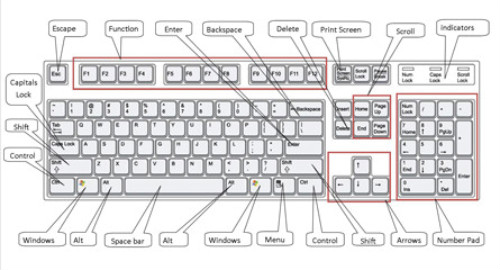
Step 1: Have a good look at your keyboard. The most important keys are labelled on the diagram below:
- See more at: http://digitalunite.com/guides/computer-basics/how-to-use-a-computer-keyboard#sthash.rmGP7lGQ.dpuf


  Some keyboards, especially those on laptops, will have a slightly different layout. For example, yours might not have a number pad or the delete key may be in a different place. But virtually all keyboards will have these important keys somewhere.   Step 2: The main keys are the letter keys. When you type just using these, you get lower-case print. However, if you hold down a ‘shift key’ (there are two to choose from) at the same time as you type, you’ll get UPPER-CASE letters.   Try typing your name, including capitals (UPPER-CASE) and spaces. The ‘space bar’ (which you press briefly to make a space) is the wide key at the bottom of the keyboard.   Step 3: If you make a mistake in your typing, there’s always a remedy.   To delete a letter, place your cursor (mouse pointer) just after the letter and click. Then press Backspace briefly. (Always press briefly – otherwise, you’ll get repeated deletions, spaces, letters or whatever.) Or place your cursor just before the letter, click and press Delete.   - See more at: http://digitalunite.com/guides/computer-basics/how-to-use-a-computer-keyboard#sthash.rmGP7lGQ.dpuf

    Step 4: Now try typing a sentence:     This is a good sentence to practise because it contains most of the letters of the alphabet.   Step 5: You can move the cursor along this sentence without deleting anything by using the arrow keys:     Try moving the cursor backwards and forwards through your sentence.   Step 6: Now try using the number pad, if you have one.   To use this to type numbers, you have to press the Num Lock key. There may be an indicator light at the top of the keyboard or on the ‘Num Lock’ key itself to show that it’s on.     Step 7: You can also type using the numbers on the main keyboard. You’ll find them on the row of keys above the top line of letters.   Above these numbers are various symbols, which include ‘£’, ‘&’, ‘!’. To use these, hold down the Shift key while you type. So if you press ’7′ on its own, you get ’7′, but if you press ’7′ while you hold down the ‘Shift’ key, you get ‘&’.   Try typing:     You’ll find similar extra symbols elsewhere on the keyboard:     They operate in exactly the same way as the ones above the numbers.   Step 8: If you want everything to appear in upper case, press the Caps Lock key and then type:     Again, an indicator light may come on to show that your capitals are ‘locked’. Don’t forget to press this key again when you’re finished to turn ‘Caps Lock’ off.   Step 9: The ‘Windows’ key comes in a number of different designs, such as the example to the right.    It does exactly the same thing as the Windows button on the taskbar on your computer screen. You can choose to open the ‘Start’ menu by pressing this key or by clicking the button on the taskbar with your mouse.   Step 10: There are a number of ways that you can move round a web page. Try using the keys below to see where they take you:     Step 10: You’ll be told to use the ‘Control’ (Ctrl) and ‘Alternate’ (Alt) keys for some operations. When you do so, keep holding down one or the other key or both keys while you press any other keys.     For example, if you press Ctrl, Alt and Delete all at the same time, a menu will open. To make it disappear, press the ‘Escape’ (Esc) key in the top left-hand corner of the keyboard.     Step 11: Some of the things that you use the mouse for can be done with keyboard shortcuts. These require you to hold down one key while pressing another, and often involve using the ‘Ctrl’ and/or ‘Alt’ keys. Some people prefer using them to using the mouse. There are many shortcuts – check out the list provided by Microsoft Support. - See more at: http://digitalunite.com/guides/computer-basics/how-to-use-a-computer-keyboard#sthash.rmGP7lGQ.dpuf

Basic parts and functionality of the coputer

Basic parts and functionality of the computer

Whether it is a telephone with a touch screen, a laptop, a tablet or a desktop, all computers consist of certain basic elements. This basic assembly is formed usually of a motherboard, a processor, central memory, hard disc drive, connections, the monitor as well as the keyboard, mouse or some kind of a touch pad.. The majority of the listed parts are inside the cabinet, but knowing them is important in order to manage different problem situations.
Remember what the reading instructions for this material told you: you don’t have to read everything from start to finish! If you are familiar with a particular subject, just skim through it and skip any content which you already know thoroughly.

The computer case

The computer case contains the most important components of the computer: the motherboard, the processor, random access memory modules, the hard drive etc. It may not be possible to exchange the components in a laptop computer, but in a desktop computer you have much more influence on the parts inside the case.
kotelot

The motherboard

The motherboard is the part of the computer where such things as the processor, memory modules, expansion cards and external devices are attached. This means that the motherboard controls the functions of different components. Below are some important features of the motherboard:
  • Number and type of hook-ups for peripheral devices
  • Number of memory module slots (for the RAM)
  • The chipset (determines how a new processor can be hooked up to the motherboard)
In addition to different hook-ups, the motherboard contains a small battery to ensure that the settings to the motherboard are preserved even when the computer is turned off.

The processor

The processor can be considered to be the ‘engine’ of the computer because it executes the lion’s share of the information processing; the processor fetches commands and necessary information from the RAM, carries out the tasks specified by the commands, and returns the processed information to the RAM.
The speed of a computer depends largely on the speed of the processor. The processor’s speed, in turn, is affected by various factors, such as the so-called clock frequency (usually expressed as gigahertz, GHz), the amount of cores and of the so-called cache memory inside the processor.

Random access memory

The RAM (Random Access Memory) is a memory storage that functions during computer use and is especially utilised by the processor. In modern computers, the amount of RAM is around 4 – 16 GB depending on the type and purpose of the computer (please seedata entry units for more information). The RAM consists of one or more memory modules (see image above).
When the computer is started, the operating system is loaded into the RAM (an operating system is a program that controls the devices and programs in a computer – please seeoperating systems for more information). The computer also loads the files being processed – music, assignments, videos etc – to the RAM.
If there is enough RAM, the computer executes requested tasks quickly. This is why it is a good idea to add to the memory by buying more memory modules as the need arises.
How do I find out the amount of RAM on my computer?You can check the amount of memory on your computer in the following manner in Windows: Open the Control Panel from the Start menu, and click System and Security and thenSystem. You will see the amount of memory on your computer on the screen.If you are using a Mac computer, you can see its memory by clicking the Mac button in the top left corner of the screen, and clicking About this Mac in the opening menu.

Hard drive

The hard drive is the permanent memory of the computer where saved files remain even when the computer is turned off. This is why the hard drive is used for saving files.
The capacity of hard drives varies; currently the typical capacity is 500-1000 GB, but hard drives of over 1500 GB, i.e. 1,5 terabit, are also available. However, the capacity of the internal hard drives in laptop computers is often less than that.You can add to the capacity of your computer by attaching an additional hard drive, either internally or externally. More information about storage sizes can be found here.
Since important files are saved to the hard drive, the individual discs in the hard drive are fixed into protective casing to keep the files safe. In spite of this protection, the discs may receive damage, so you should definitely take backup copies of the files on your hard drive every now and then (please see backup copies for more information)!

DVD and Blu-ray drives with writing capabilities

Most computers these days come with a  Blu-raydrive or a DVD (Digital Versatile Disk) drive with writing capabilities, with which you can burn such things as backup copies of important files to DVDs. CD drives are older and have mostly been replaced with DVD drives. CD drives can only burn data on CDs, which have a substantially smaller storage capacity, while DVD drives can burn data to both CDs and DVDs with more capacity (please see recording media for more information).

The display and display adapter

Most computer displays are so-called LCD displays (Liquid Crystal Display), where the image display is produced by liquid crystals between two transparent sheets. Display sizes range between only a few inches in handheld apparatuses to large 24 inch desktop displays.
One of the most important features of the display is itsresolution, i.e. how many pixels (picture elements) the image consists of.  A normal 22 to 24-inch widescreen display usually has 1920 pixels horizontally and 1200 pixels vertically (1920×1200). These displays can reproduce FullHD (full high definition) image.
No matter what the type of display is, the computer must contain a so-called display adapter that allows you to attach the display to the computer and controls the display image. Practically all motherboards come equipped with a display adapter, so you do not need to buy one separately, unless you want to enhance the capabilities of your desktop computer e.g. for gaming, video editing, or 3D imaging purporses.

Keyboard

A standard keyboard has 102 keys. The keys are divided into alphabetical (a-z), numerical (1-0) and special (Function, Ctrl, Alt etc keys).
In addition to the usual alphabetical and numerical keys, you should know at least the following special keys that are located among the alphabetical ones.
Below are shown some typical keys on a PC keyboard. The keyboard mapping on Mac computers is almost identical to PC keyboards, but the special keys Ctrl and Alt work slightly differently. In addition, the Mac keyboard has Fn and Cmd keys instead of the Windows key.


Ctrl: (Control) is used in combination with other keys for different actions. The combination Ctrl+C, for example, copies the chosen data to the memory.
Alt: (Alternative) is used like the Ctrl key. Sometimes both these keys are used in combination: Ctrl+Alt+Del, for example, brings up the task manager(in Windows XP).
Alt Gr
: (Alternative Graphics) produces the ‘third character’ of the keys, e.g. @, $, £ and }. With this key, you can also create the ~ character (important for the internet). Create the  ~ character as follows: press ALT-GR and the ~ key at the same time, and finish with the space bar.
You can make so-called ascii characters with combinations of the Alt key and numerals, e.g. Alt+0176 makes the character for temperature °. You can choose to either add special characters in this way or through an application. Most text processing programs have their own menu for special characters.
Shift: capitalizes letters and the special characters on the numerical keys, among others.
Caps Lock: locks the capitalization of letters. This function is connected with an A or Caps lock pilot light on the keyboard. It turns on the light when the function is in use.
Tab: the tabulator is mainly used in word processing: each time you press the tab button, the cursor moves to the next tab stop on the same row. The key can also be used for alternating between window displays.
Backspace: removes the characters to the left of the cursor, i.e. what you just wrote. This key can also be used to remove a larger portion of text.
Enter: by pressing this key you can change paragraphs or e.g. accept a function.
There are more special keys above the alphabetical keys; of these the function keys(please see next image) are used for different functions, depending on situation and the program currently being used. The manual for these functions is usually available in the manual for the program.
To the left and right of the function keys, you will find the following additional keys:
Esc (Escape): mostly used to cancel a function, or e.g. to close a menu window.
Home and End: these keys bring the cursor to the top or the bottom of the line.
Page Up and Page Down: move the page up or down.
Insert: starts the insert function, where the text you are writing replaces the text to the right of the cursor.
Delete: deletes the character to the right of the cursor.
Arrow keys: move the cursor in the direction shown by the arrows.
The number pad is activated with the Num Lock key: when it is activated, the pilot light with the symbol 1 or the text Num Lock lights up. Usually the Num Lock function has been set to be turned on when starting up the computer. If the pilot light is not turned on, the keys function in the way indicated by the symbols on the keys (8 up, 4 left, 6 right, 2 down).
The keyboard also has the rarely used keys Print Screen, Scroll Lock and Pause. The Print Screen key lets you take a picture of the display (Alt+PrintScreen takes a picture of the currently activated window) and send it to your clipboard, Scroll Lock locks the scrolling of the display and the Pause key can be used e.g. for stopping the loading of the system during start-up.
For more information on hotkeys and key combinations, see the additional reading material.

Pointing devices

Traditionally, most programs have been designed to be used with a mouse. The mouse cursor seen on the screen of the computer moves along with the mouse.  The cursor can be used to select menu commands and areas, as well as activating different objects by clicking the mouse keys.

Mouse

You can attach a traditional mouse with or without a cord to any computer. Cordless mice use radio waves to relay movement from the mouse to the computer (for this mouse, a small radio receiver is attached to the computer).

Touchpad

Almost all laptop computers have a touchpad which is used to move the cursor. Some models also have a so-called pointing stick. In addition, portable computers have keys with the clicking function of mouses. The  touchpad is a pad where you can control the cursor by moving your finger along the pad. Tapping the pad serves the same function as clicking a mouse.

Pointing stick

The pointing stick is a ‘nub’ located in the middle of the keyboard, and controls the cursor. The pointing stick can be ‘clicked’ by tapping the stick or using the separate buttons in the keyboard. In the right-hand image above, you can see a portable computer with both a pointing stick (blue) and a touchpad (the large, dark grey area in front of the keyboard).

Touchscreen

Devices that are smaller than a laptop, such as phones and tablets, usually do not have a separate keyboard or pointer device. In these devices, the entire screen of the device works as an input device. A touchscreen is used like the track pad on a laptop, and when typing is required, a keyboard appears on the screen.
copyrighthttp://blogs.helsinki.fi/ict-driving-licence/1-introduction-to-the-use-of-computers/1-1-computer-functionality/basic-parts-and-functionality-of-the-computer/